Send a fax from your computer
To send a fax from a computer without a fax machine, upload the PDF to FaxJet in any browser, type the fax number and pay once: $2.99 for up to 10 pages to the US or Canada. No account, no software and no subscription.
Faxing from your iPhone? Get the app
How to fax from a Mac, a PC or a Chromebook
- 01
Upload the file
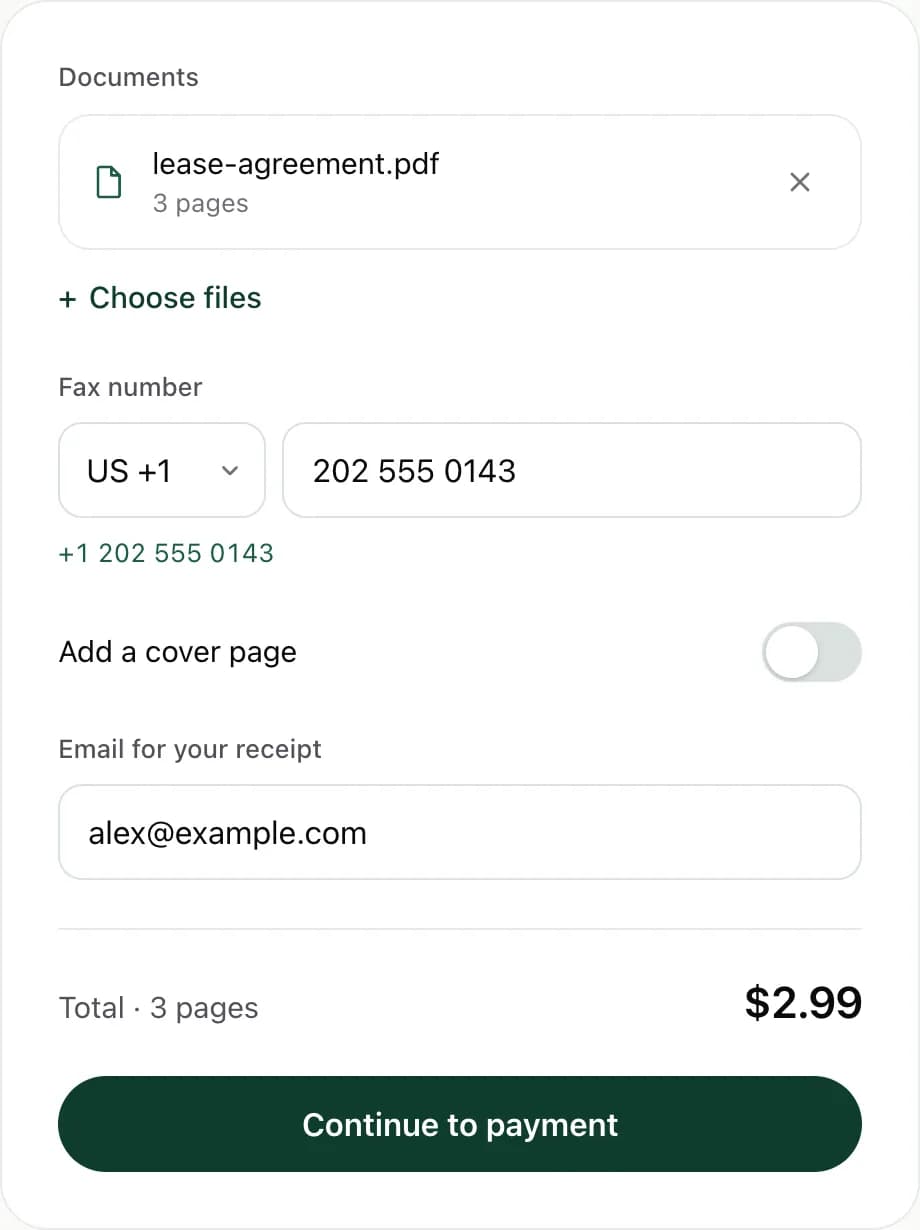
Drag a PDF or an image into the box above. A Word document: save it as a PDF first (File, Save As, PDF).
- 02
Type the fax number
Pick the country, type the number and add a cover page if you need one.
- 03
Pay once
Card, Apple Pay or Google Pay. The price is shown before you pay and nothing renews.
- 04
Watch it arrive
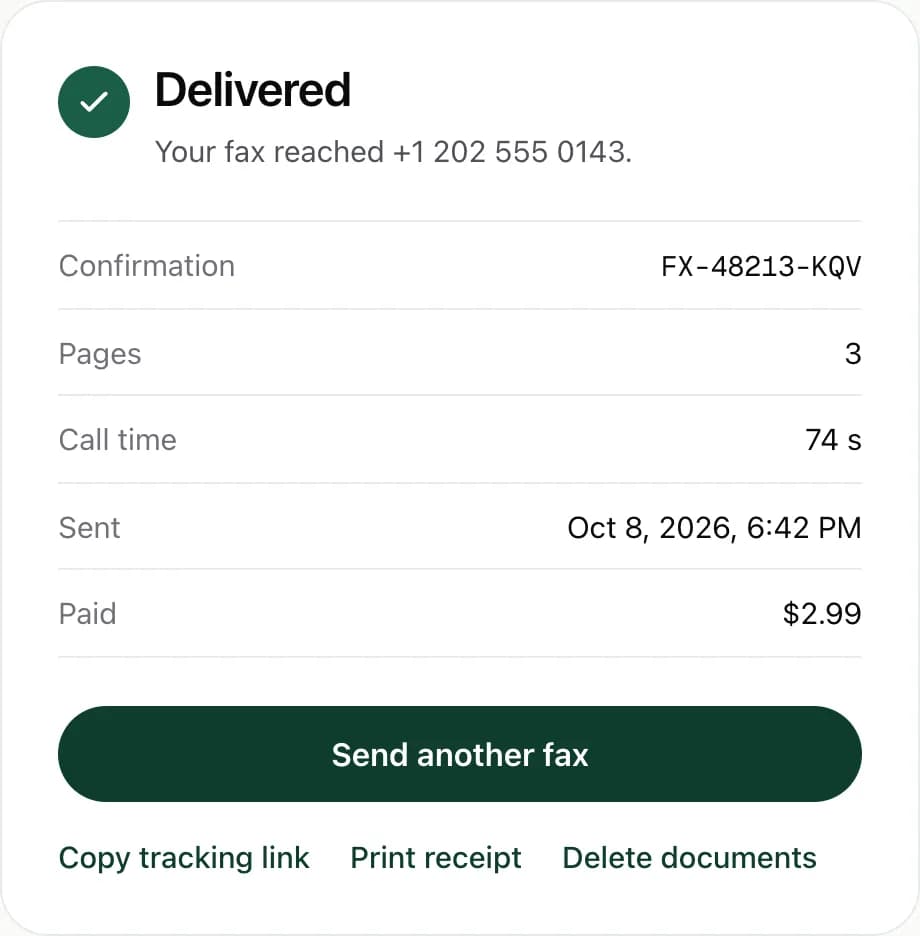
The page shows each step until the fax is delivered, then a confirmation number you can print.
At a glance
- Price
- $2.99 up to 10 pages (US, Canada)
- Files
- PDF, JPG, PNG, HEIC
- Pages
- Up to 30 per fax
- Works on
- Mac, Windows, Linux, Chromebook
- Software or phone line
- Not needed
The web sender, step by step
Ways to send a fax, compared
There are four common ways to send a fax today. Each one makes sense for someone: the right one depends on how often you fax and whether you also need to receive faxes.
| What you need | What one fax costs | Best for | |
|---|---|---|---|
| Fax machine | The machine and a landline | The line’s monthly bill, plus paper and toner | Offices that send and receive faxes every day |
| Print shop or office store | A trip to the counter with your papers | A fee per page, set by the store | Paper documents, when you are nearby anyway |
| Online fax subscription | An account and a monthly plan | The monthly fee, even in months you send nothing | Sending and receiving every week |
| Pay per fax on the web (FaxJet) | A browser and a PDF or a photo | $2.99 up to 10 pages to the US or Canada | A few faxes a year, with no account |
FaxJet’s website only sends. If you need a fax number to receive faxes, or you fax every week, the FaxJet iPhone app or a subscription service costs less per fax.
Prepare your file
A PDF gives the most predictable result: the pages arrive exactly as they look on your screen. Most programs can save one:
- Microsoft Word: File, Save As, then choose PDF as the file type.
- Google Docs: File, Download, PDF Document.
- Pages on a Mac: File, Export To, PDF.
- Any other program: print, then choose Save as PDF on a Mac or Microsoft Print to PDF on Windows.
- A paper document: scan it, or take a photo of it with your phone (JPG, PNG or HEIC).
Each file can be up to 20 MB, and one fax holds up to 30 pages including the cover page. Add several files and they are sent as one fax, in the order you added them. A PDF protected by a password can’t be read: save a copy without the password first.
Make it readable on a fax machine
A fax is sent in black and white at fine resolution, about 200 dots per inch. That is plenty for normal text, but some things don’t survive the trip:
- Light gray text, pale colors and yellow highlighter can disappear. Use dark text on white.
- Text smaller than about 10 points gets hard to read. Enlarge small print before you send.
- Dark backgrounds and large photos turn into black areas and make the call longer.
- A signature in blue or black ink comes through well; light pencil may not.
What a fax confirmation proves
FaxJet shows Delivered, with a confirmation number, only after the receiving fax machine has confirmed the pages on the call. The receipt lists the number dialed, the page count, the call time, when the fax was sent and what you paid.
That shows your pages reached a fax machine at that number at that time. It doesn’t show that a person read them or that the number belongs to the right office. When a deadline matters, keep the receipt with your document and call the recipient to check.
To keep a copy, use Print receipt, or copy the tracking link: it opens the fax’s status in any browser.
Troubleshooting a failed fax
When a fax can’t be delivered, the page shows the reason. Here is what each one means and what to try:
| Reason shown | What it usually means | What to do |
|---|---|---|
| The receiving fax line was busy. | The machine was taking another fax or call. | Nothing at first: FaxJet calls again twice, two minutes apart. If the line stays busy, send again later. |
| The recipient’s fax did not answer. | The machine is off, out of order or not on that line. | Check the number, then try again during the recipient’s office hours. |
| The number answered, but not as a fax machine. | A person or a voicemail picked up: it is a phone line, not a fax line. | Ask the recipient for their fax number. |
| That fax number couldn’t be reached. Check the number. | The number is incomplete, or the country is wrong. | Check the country and the area code, then send again. |
| Transmission was interrupted. | The call dropped before all the pages went through. | Send again: a bad line often works on the next try. |
| The document couldn’t be prepared for faxing. | The file is damaged or protected. | Save it again as a PDF and upload the new file. |
On the website, a fax that fails for good is refunded automatically: you only pay for a fax that is delivered.
Your documents and your payment
Files are uploaded over an encrypted connection and sent from FaxJet’s servers through its fax carrier. They are kept so that the tracking link and the receipt keep working; after the fax, Delete documents removes them from FaxJet’s servers. The privacy policy has the details.
Payments go through Stripe, and FaxJet never sees your card number.
Questions
Can I fax a Word document?
Save it as a PDF first (in Word: File, Save As, PDF) and upload the PDF. The pages arrive exactly as you see them.
Do I need a phone line or a modem?
No. FaxJet places the call on its own fax line. You only need a browser.
How do I know the fax arrived?
The page shows live progress, then a confirmation number when the receiving machine has the fax. Copy the tracking link to check it later from any device.
What if the line is busy?
FaxJet calls again by itself. If the fax still can’t be delivered, the payment is refunded automatically.
Can I send a fax from Gmail or Outlook?
Not with FaxJet: it doesn’t send faxes by email. Download the attachment to your computer, then upload it here.
Can I fax several files at once?
Yes. Add them one after another and they go out as one fax, in the order you added them, up to 30 pages.
Can I receive faxes on my computer?
Not with the website. Receiving needs a fax number, which comes with the plans of the FaxJet iPhone app.
Will the recipient see my phone number?
No. The fax comes from FaxJet’s fax line. Add a cover page with your number if you want a reply.