Send a fax from your iPhone
You can send a fax from an iPhone without a fax machine. Open this page in Safari, add a PDF or a photo, type the fax number and pay $2.99 (US and Canada, up to 10 pages). If you fax often, the FaxJet app scans paper with the camera and keeps every receipt.
Faxing from your iPhone? Get the app
Four steps from Safari
- 01
Add the document
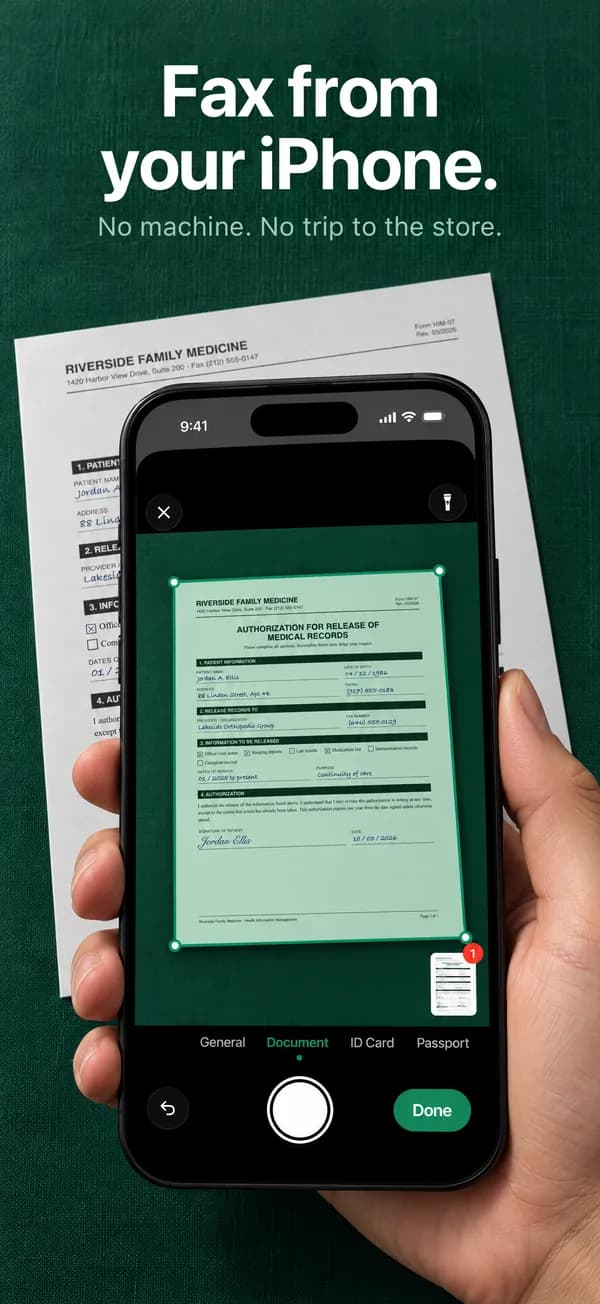
Pick a PDF from Files or a photo of the page. In the app, scan it with the camera: the page is found, straightened and cleaned up for fax.
- 02
Type the fax number
Choose the country and type the number the way it is written there. Add a cover page if the recipient asked for one.
- 03
Pay and send
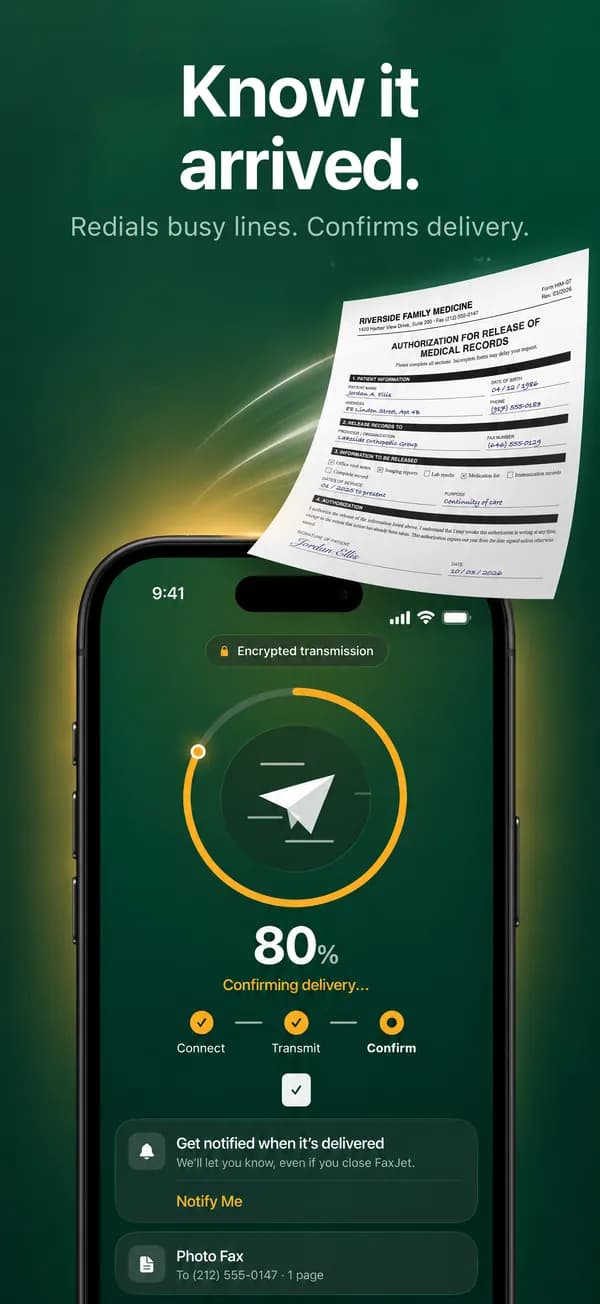
Pay with Apple Pay or a card. FaxJet dials the number and calls a busy line again by itself.
- 04
Keep the receipt
When the fax is delivered you see a confirmation number, the page count and the time. A fax that fails is refunded.
At a glance
- Price
- $2.99 up to 10 pages (US, Canada)
- Time
- About a minute for most faxes
- Files
- PDF, JPG, PNG, HEIC
- Countries
- 240+
- Fax machine or account
- Not needed
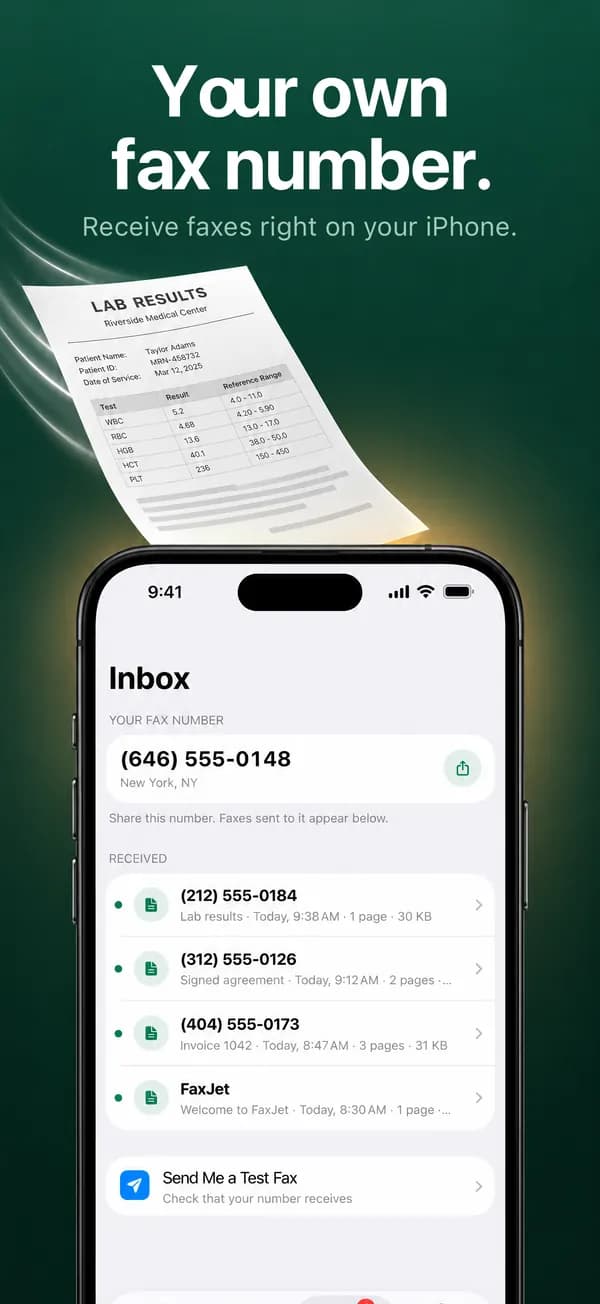
The FaxJet app on iPhone
Safari or the app: which one fits
Both send a real fax over a phone line, and both end with a delivery receipt. The difference is how you pay and what comes with it.
Safari is for a fax now and then: you pay for that one fax and nothing renews. The FaxJet app is for people who fax every week, scan paper often or need to receive faxes.
| Safari on faxjet.net | FaxJet app | |
|---|---|---|
| Payment | Once per fax: $2.99 up to 10 pages to the US or Canada | Subscription through Apple: Pro from $9.99 a week |
| Account | None | Not needed |
| Adding pages | A PDF from Files or photos from your library | A camera scanner that finds and cleans the page, plus Photos and Files |
| Receiving faxes | No | Yes, on a US or Canadian fax number of your own |
| Signing | Sign on paper before you scan | Draw your signature once and place it on any page |
| Your faxes | A tracking link for each fax | Every fax and receipt kept in the app |
| If a fax fails | Refunded automatically | It doesn’t count toward your plan |
| Stopping | Nothing to cancel | Cancel any time in iOS Settings |
Turn paper into a clean PDF on your iPhone
You don’t need an app to scan. The Files app and the Notes app on iPhone both have a document scanner: in Files, tap the three dots at the top and choose Scan Documents. It saves a PDF you can add here.
If you take a plain photo instead, a few habits make it easy to read on the other side:
- Lay the page flat on a dark surface, so its edges stand out.
- Use daylight or a bright room, and keep your own shadow off the page.
- Hold the phone straight above the page and fit the whole sheet in the frame.
- Take one photo per page. HEIC photos from the iPhone camera work as they are.
- Zoom in on the photo before you send: small print should be sharp.
Fax a file that is already on your phone
A document you got by email: open the attachment, tap Share and choose Save to Files. Then pick it from Files when you add the document.
A Word, Pages or Google Docs file: export it as a PDF first, so the pages arrive exactly as they look on your screen. In Pages, use Export and choose PDF; Word and Google Docs have a similar option to save or download a PDF.
Several files go out as one fax, in the order you add them, up to 30 pages including the cover page.
Android, iPad, Mac and email
The sender on this page works in any modern browser, so the steps are the same on an Android phone, an iPad or a computer. On a desktop, see how to send a fax from a computer. The FaxJet app itself is made for iPhone.
FaxJet doesn’t send faxes from an email address. To fax an attachment, save it to your phone or computer first and add it here.
What the recipient sees
Your fax arrives from FaxJet’s fax line, not from your phone number. If the recipient needs to reply by fax or call you back, put your number on a cover page: switch on Add a cover page before you pay, or make one with the free fax cover sheet maker.
The pages come out in black and white on the receiving machine. Colors turn into shades of gray and light colors can fade, so dark ink on white paper works best.
If the fax doesn’t go through
A busy line or a fax that doesn’t answer is called again by itself, up to two more times, two minutes apart. If the fax still can’t be delivered, the page tells you why, and a fax paid on the website is refunded in full.
The usual causes are a wrong or incomplete number, a phone line that a person answers instead of a fax machine, or a machine that is switched off. The guide to faxing from a computer lists every reason with what to do next.
Questions
Can an iPhone send a fax by itself?
No. An iPhone has no fax modem, so a service has to call the fax line for you. FaxJet does that from Safari or from its app.
Do I need to install an app?
No. Sending works in Safari. The app adds camera scanning, signatures, a fax number to receive faxes and a history of every receipt.
How do I fax a photo of a document?
Upload the photo as it is (JPG, PNG or HEIC). In the app, scanning the page with the camera crops and cleans it so it reads well on a fax machine.
Is it safe to fax from my phone?
Your document is uploaded over an encrypted connection, and payments go through Stripe: your card details never reach FaxJet.
How much does it cost to fax from an iPhone?
From Safari, $2.99 for up to 10 pages to the US or Canada and $4.99 for 11 to 30 pages. Other countries start at $3.99. The FaxJet app is a subscription through Apple instead, from $9.99 a week.
Can I receive a fax on my iPhone?
Yes, with the FaxJet app: a plan lets you pick a US or Canadian fax number of your own, and the faxes you receive appear in the app’s Inbox. Sending from Safari doesn’t include a number.
Is there a free way to fax from an iPhone?
Not with FaxJet. Each fax is a real call on a phone line, and the price pays for it. The fax cover sheet maker on this site is free.
Does this work on Android or iPad?
Yes. The sender on this page works in Chrome on Android and in Safari on iPad. The FaxJet app is made for iPhone.